Welcome to Drawing Sync
The easiest way to put an AutoCAD drawing in front of an AI: no export tools, no integrations -- just a chat window. Real coauthoring. Your drawing's entire database, laid open as a spreadsheet.
Drawing Sync brings three things to AutoCAD that haven't existed together before: DXF-CSV, a plain-text drawing format an AI can read, write, and reason about; real coauthoring, so a team can edit the same drawings on separate devices and merge automatically; and your drawing's entire database , laid open as a spreadsheet you can browse, script, and version like any other data. Under the hood, all three run on the same core technology -- keep reading to see how.
Design with AI -- DXF-CSV
Run CSVOUT and your drawing exports as a plain CSV file -- one row per entity, with AutoCAD's internal bookkeeping (pointers, owner chains, classes, dictionaries) already stripped out. Paste it into a chat with an AI language model and it can read your drawing: describe changes, find issues, or generate new content, all in plain English. Run CSVIN to bring the AI's response back into AutoCAD as native entities.
CSV is the format AI models already understand best -- simple, lightweight, and universally supported by data tools and every programming language. DXF-CSV v1.0 packages that simplicity with just enough structure -- a spec, a metadata line, a versioning contract -- to round-trip cleanly through AutoCAD.
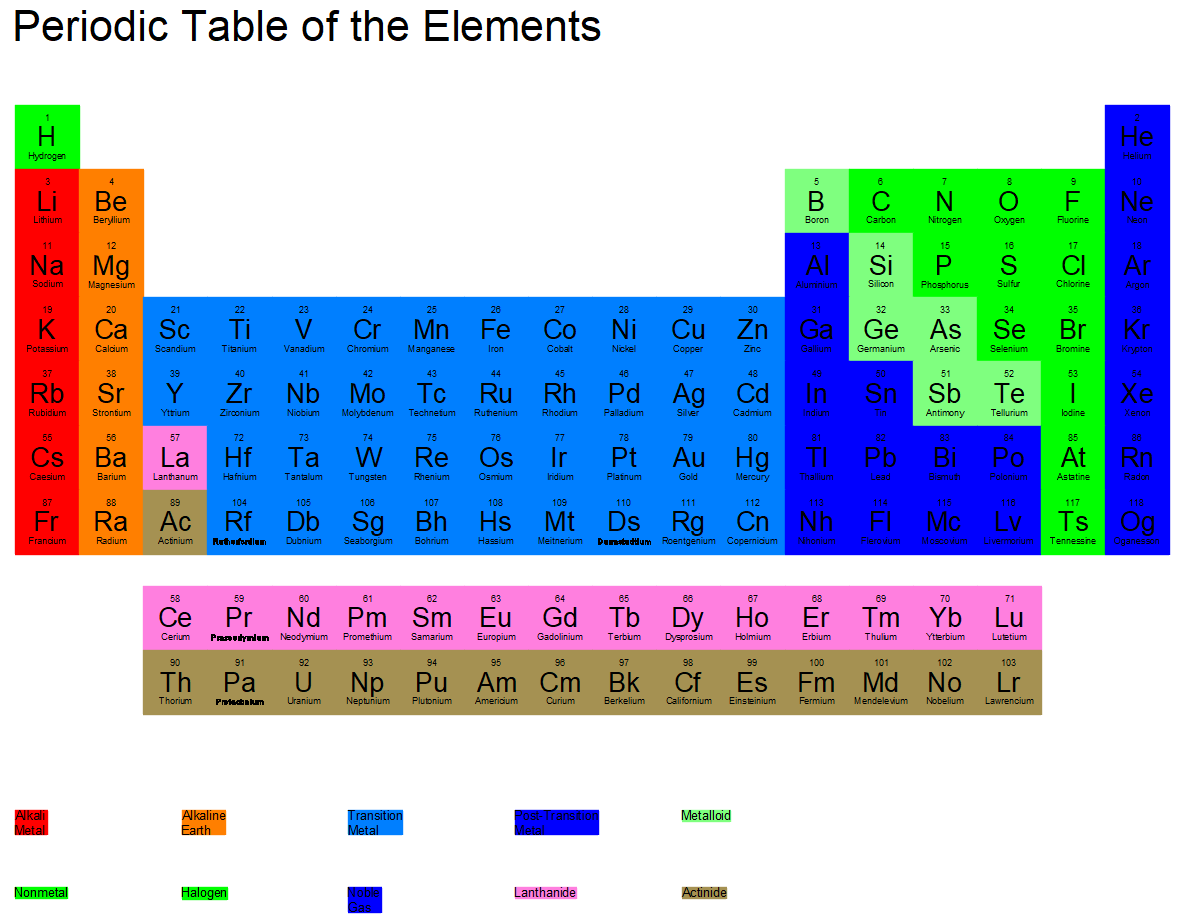
Try it yourself: run CSVIN from AutoCAD's Add-ins ribbon and
specify sample_mtext.csv -- the exact file
that produced the drawing above. CSVIN accepts an https:// URL directly,
so this sample CSV does not need a manual download step.
Read the DXF-CSV v1.0 AI Guide -- written specifically for AI consumption, so you can paste the link into an AI chat window and start generating. It covers CSVOUT/CSVIN both directions.
Create a drawing:
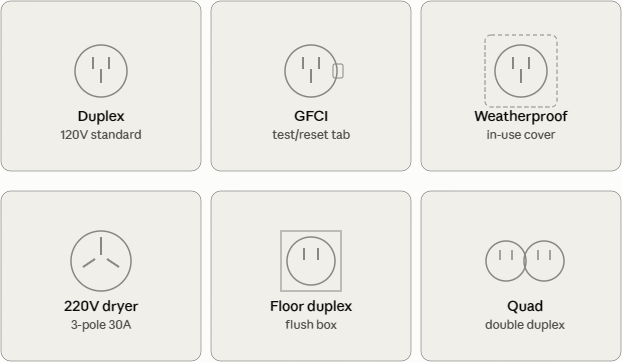
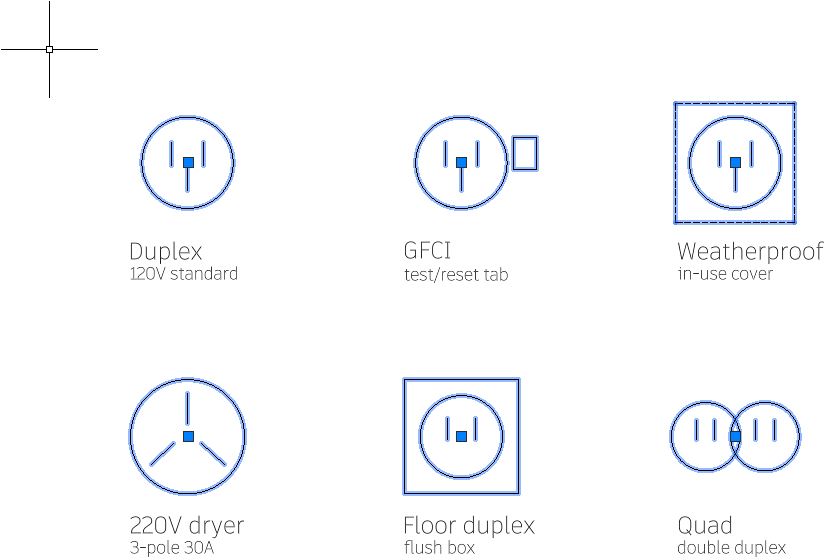
In an AI chat window, ask Claude to draw something -- see the examples below. Hand the AI a link to the DXF-CSV v1.0 specification to teach it the format if needed.
Work together, on your own schedule -- Worksharing & version history
Watch: Welcome to Drawing Sync -- if you've been invited to a workshare, see joining a workshare.
Create a workshare from a project folder and invite team members. Everyone edits locally, on their own device, and connects only when they Sync Central -- the same occasionally connected model Autodesk Collaboration Pro brought to Revit, now available for AutoCAD drawings.
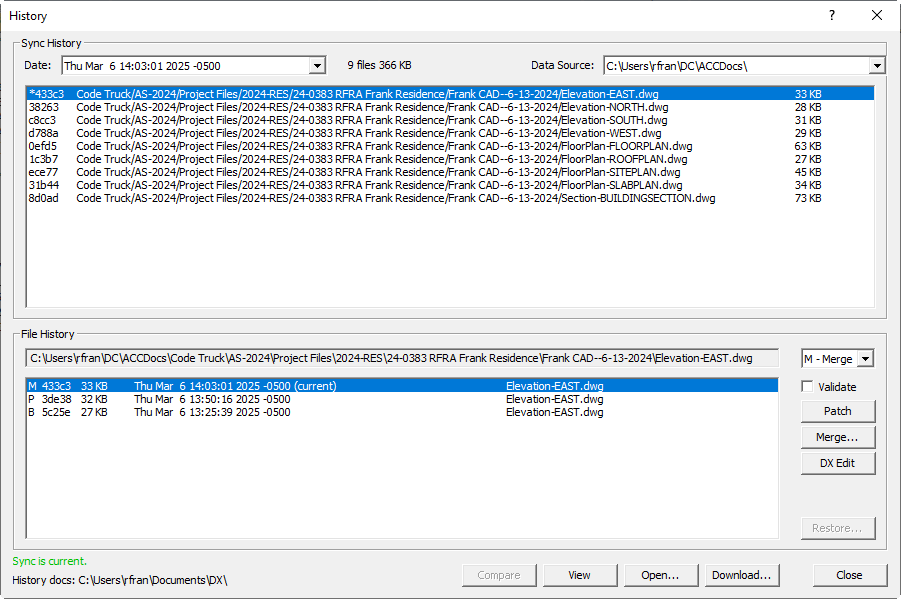
Every sync is a version. History keeps a snapshot of every save, whether you're working solo or as a team -- you don't need a workshare to start; Sync Central alone gives any project folder a local version history.
If two people edit the same drawing at the same time, Drawing Sync resolves it automatically for plain AutoCAD entities. Conflicts on custom objects fall back to Keep Mine, Keep Theirs, or a manual merge.
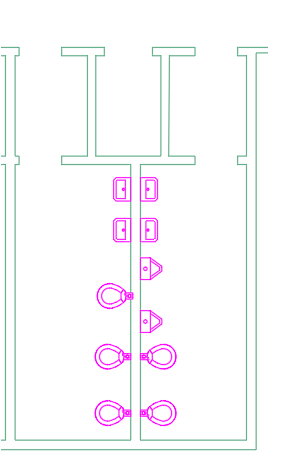
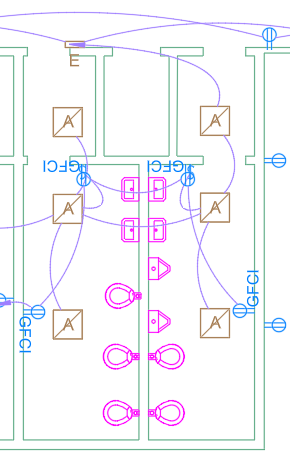
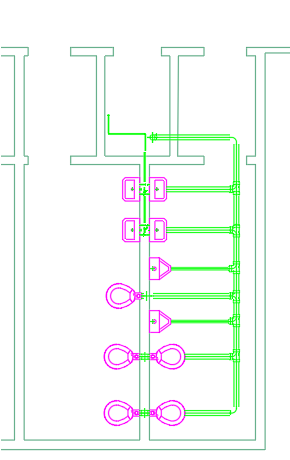
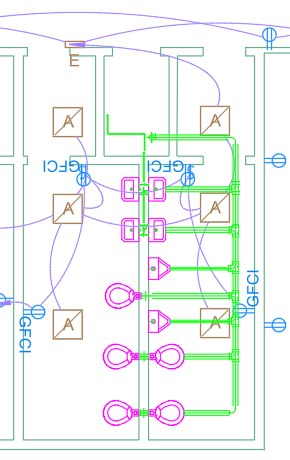
Even without a team, a central location -- even a thumb drive -- lets you sync a project between office, home, and presentation devices.
One database snapshot, three tools -- Drawing database tools
Here's the thread connecting everything above: every Drawing Sync feature runs on your drawing's database, exactly as AutoCAD itself keeps it -- persistent handles, owner and pointer chains, classes, dictionaries, even PROXY entity data and graphics binaries for objects your AutoCAD session can't fully interpret. We call it a database because AutoCAD does; there's no query language here, just the ability to see, add, update, and delete what's in it.
DXEDIT opens that database as a spreadsheet -- one entity or object per row, every property in its own column, sortable and filterable like any spreadsheet. This is the raw, untangled view: everything AutoCAD sees, presented as a table instead of an object graph.
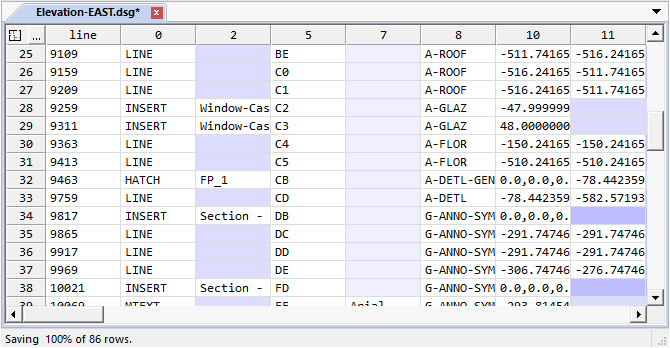
CSVOUT builds on that same view but does the real work: stripping away the pointers, owner chains, and internal bookkeeping DXEDIT still shows you, down to the clean, portable structure DXF-CSV defines. What's simple for an AI to read is simple because CSVOUT already did the untangling.
That's the connection:
version history and patching run on this same
database view.
A DXF-CSV file's sha1: clause is Drawing Sync's
own content hash for the source drawing -- effectively a version identifier, the same
mechanism that lets History tell two versions apart and lets a workshare detect and
resolve a conflict. Generate a DXF-CSV file against a known sha1: target
and you're using the identical versioning contract that powers a team merge.
Database changes between any two versions -- current vs. previous save, or yours
vs. a teammate's -- are reported as a drawing patch (.dwp), a plain-text
diff of what was added, changed, or deleted, down to the DBMOD variable
that tells you what kind of object moved.
Drawing Exchange (DX) commands -- DXEDIT, CSVOUT, DXSESSION, DXPATCH -- work on any drawing standalone. You don't need history or a workshare set up to use them.
Get started
- Install -- From the Autodesk App Store or this site.
- Try DXF-CSV or the drawing database tools solo -- no sign-in required. Run CSVOUT, DXEDIT, or DXPATCH on any drawing.
- Sign in -- only needed to join or manage a workshare and accept invitations. See sign-in.
- Admin -- as an admin, you create the workshare, then Manage it on this site to invite team members.
How much does it cost?
Drawing Sync is free to use for Individual use and small (3 seat) teams.
DXF-CSV (csvin/csvout) and drawing database tools are individual-use features and always free to use.
For larger worksharing teams:
- A Team plan is $200.00 / year for each team member.
- We are developing an Enterprise plan with SSO and premium support.
WE NEED EARLY ADOPTERS Currently and for a limited time, one-year 10-seat team subscriptions are available at no charge. Simply install Drawing Sync and register. You can confirm your 10-seat subscription in the about box.
As we onboard early adopters (hopefully you), email support is free. Questions, feedback, requests, or just tell us how you're using the software: support@codetruck.net.